


Frequently asked questions, tips & tricks
Easy designing of labels. Here you’ll find help, tips and tricks on how to use LabelAssistant Online.
If you don’t find an answer to your question or have a special query about LabelAssistant Online, just send us an e-mail at verkaufsteam-handel@herma.de.

Getting started / General information
-
What is the purpose of HERMA LabelAssistant Online?
Herma LabelAssistant Online is a program that lets you design and print your own Herma labels. It does not require downloading or installation.
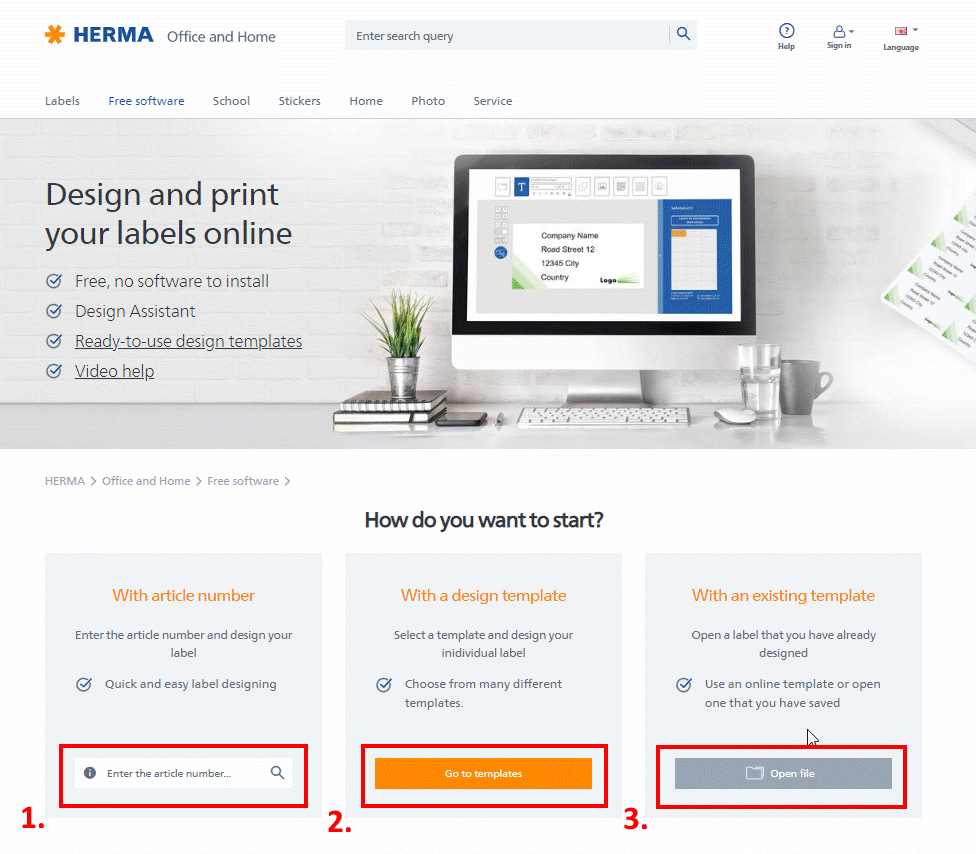
You can start off in one of three ways:
1. Enter an article number and start with a blank label.
2. Start with a design template.
3. Modify an *.lao template that has already been saved.
Then you go to the workspace, where you have several options.
For example, you can add a text field or set up a file for mail merge printing.
-
Where can I find information about the label?
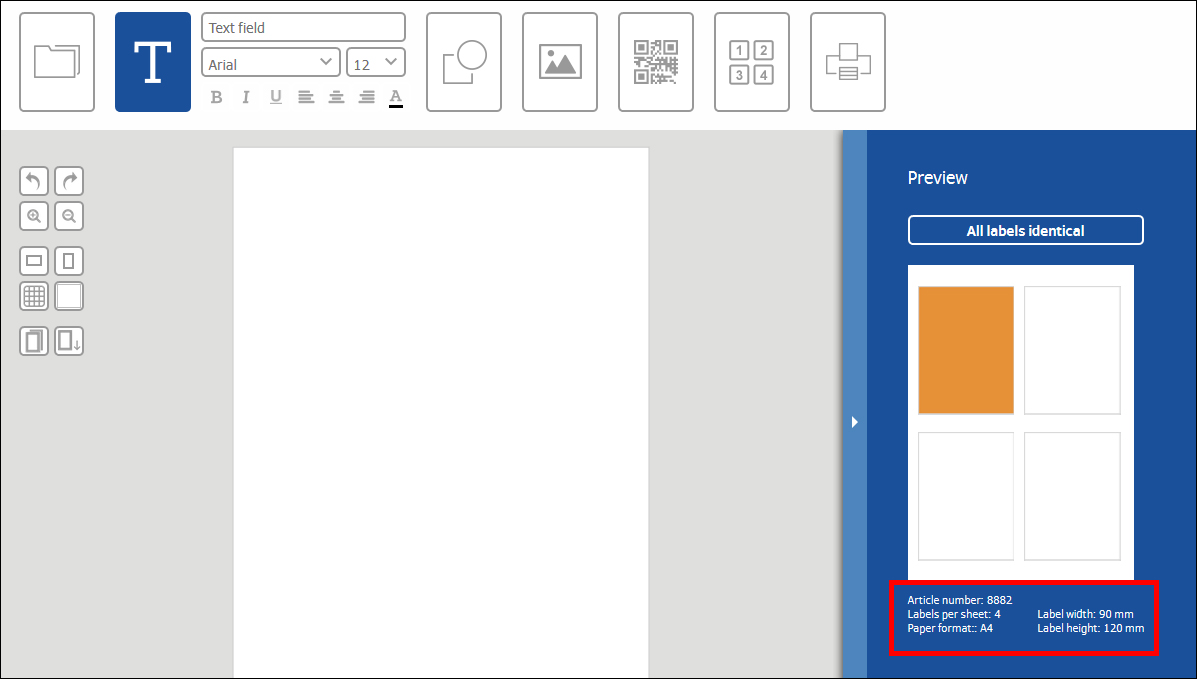
In the “Page view” area, to the right of the editing area and below the label sheet, you will find details about the label you have selected such as the article number, number of labels per sheet, paper format, label width and label height.
-
How do I select a different label?
When selecting a different/additional label, make sure that your current label design has been saved online or on your hard disk for later editing.
Click on the “Back to overview” link under the language selection.
You can then enter a new article number or open a document that was saved on your hard disk.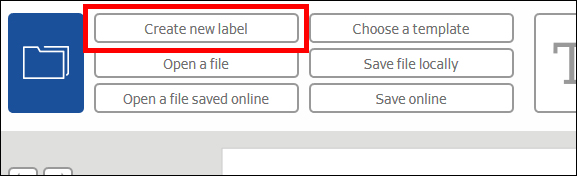
-
How do I return to the start page?
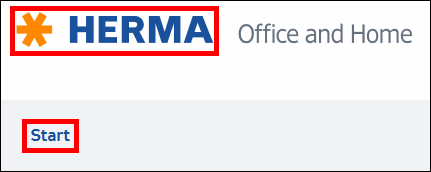
Click on the large HERMA logo. This closes the current label and takes you back to the start page.
Note:
The design software is not optimised for mobile devices.
However, you can open it or send the link to yourself by email. To do this, click on "Send link". In this way you can open the software later on your desktop PC.
Send link