


Frequently asked questions, tips & tricks
Easy designing of labels. Here you’ll find help, tips and tricks on how to use LabelAssistant Online.
If you don’t find an answer to your question or have a special query about LabelAssistant Online, just send us an e-mail at verkaufsteam-handel@herma.de.

Bar & QR Codes
-
How do I insert a bar code?
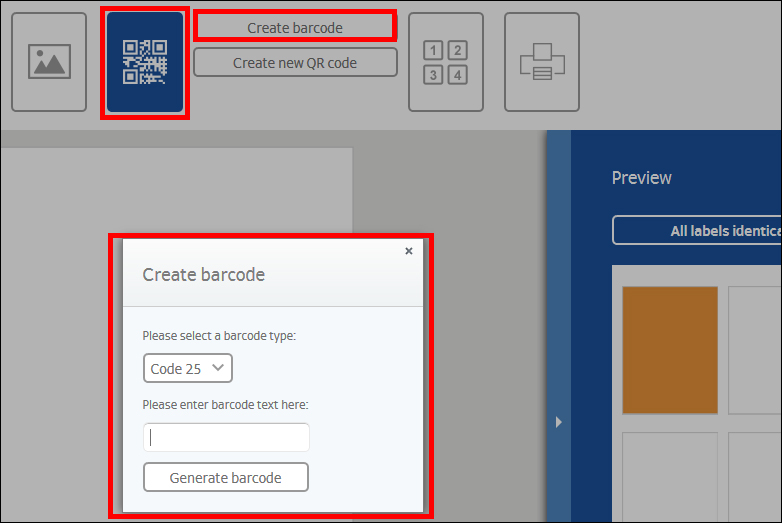
Select the “Barcode/QR code” button and click on “Barcode”. In the window which opens, first select the barcode type and then enter the barcode text. Then click on “Generate barcode”. You can move or rotate barcode on the label as with any other object.
You can also insert a barcode when merging documents. After uploading your file, select the “Set up barcode/QR code” checkbox in the Mail merge wizard. Then specify the fields for which you want to create a barcode. "
-
How do I insert a QR code?
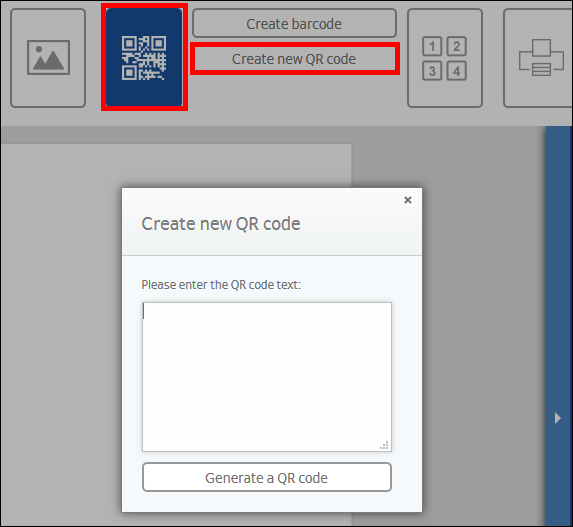
Select the “Barcode/QR code”button and click on “QR code”. In the window which opens, enter your text or target address. Then click on “Generate QR code”. You can move or rotate QR code on the label as with any other object.
You can also insert a QR code when merging documents. After uploading your file, select the “Set up barcode/QR code” checkbox in the Mail merge wizard. Then specify the fields for which you want to create a QR code."
Note:
The design software is not optimised for mobile devices.
However, you can open it or send the link to yourself by email. To do this, click on "Send link". In this way you can open the software later on your desktop PC.
Send link